
Last checked: October 22, 2026 · Sources: Papago on the App Store and Google Play, and Naver’s Papago help center, linked below.
Papago is Naver’s free translation app. In Korea it translates typed text, speech, two-way conversations and photos of menus or signs, in 14 languages. Offline, it handles text and voice only, and only between Korean, English, Japanese and Simplified Chinese, after you download a language pack.
It runs on iPhone (iOS 17.0 or later) and Android (9.0 and up). There is also a browser version at papago.naver.com that works on a phone without installing anything.
What can Papago do on a trip?
| Mode | Use it for | Needs a connection? |
|---|---|---|
| Text | Typing a question, reading a message | No, with an offline pack (4 languages) |
| Voice | Saying one phrase and playing it back in Korean | No, with an offline pack (4 languages) |
| Conversation | A back-and-forth with one person | Yes |
| Image | Menus, signs, labels, notices | Yes |
| Handwriting | Copying Korean letters you can’t type | Yes |
| Website | Translating a Korean web page by URL | Yes |
| Phrasebook | Ready-made lines for airports, hotels, basics | No |
The app lists a few more tools, such as document translation, a dictionary and study notes. On Android, Papago Mini translates text on screen when you copy it in any other app. On iPhone with iOS 18.4 or later, you can set Papago as the default translation app in Settings > Apps > Default Apps > Translation.
How do you translate a menu or sign with your camera?
Open the image mode, point the camera, take the photo and tap the button. Papago finds the text in the picture and translates it.
Papago’s help center says recognition goes wrong in three cases:
- Part of the phrase falls outside the area you highlight with your finger
- The text is handwritten or in cursive
- Patterns or lines in the background run through the letters
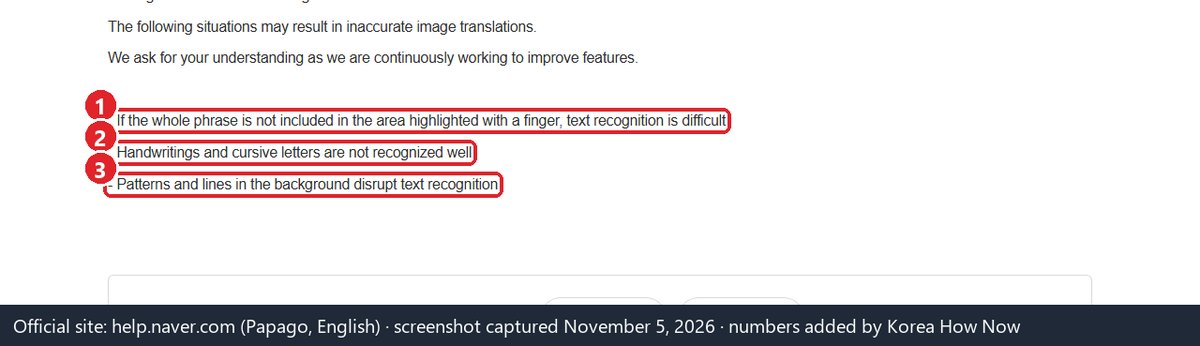
Handwritten menu boards fall into the second case. If a photo gives you nonsense, copy the dish name with the handwriting tool instead, or point at the item and ask.
The app also asks for location access. Naver says this is to show nearby place information from the photos you take for image translation.
How do you hold a conversation with Papago?
Conversation mode is built for one-to-one talk. Each person speaks in their own language and sees the other side translated.
- On the Home screen, set the language pair, for example English and Korean.
- Tap the Conversation translation icon.
- Tap the microphone on your side and speak.
- Papago shows the translation, and reads it aloud if Auto-speak is on in Settings.
- The other person taps the microphone on their side and answers.
- Tap any result to hear it again.
In a noisy street or market, press and hold the microphone while you speak. Naver says this push-to-talk method gives more accurate recognition, and it works the same way in voice mode.
On iPhone, voice and conversation in Vietnamese, Thai, Indonesian, Russian and Italian use Apple’s speech recognition. The listing says the voice data then goes to Apple under Apple’s policy.
Does Papago work offline?
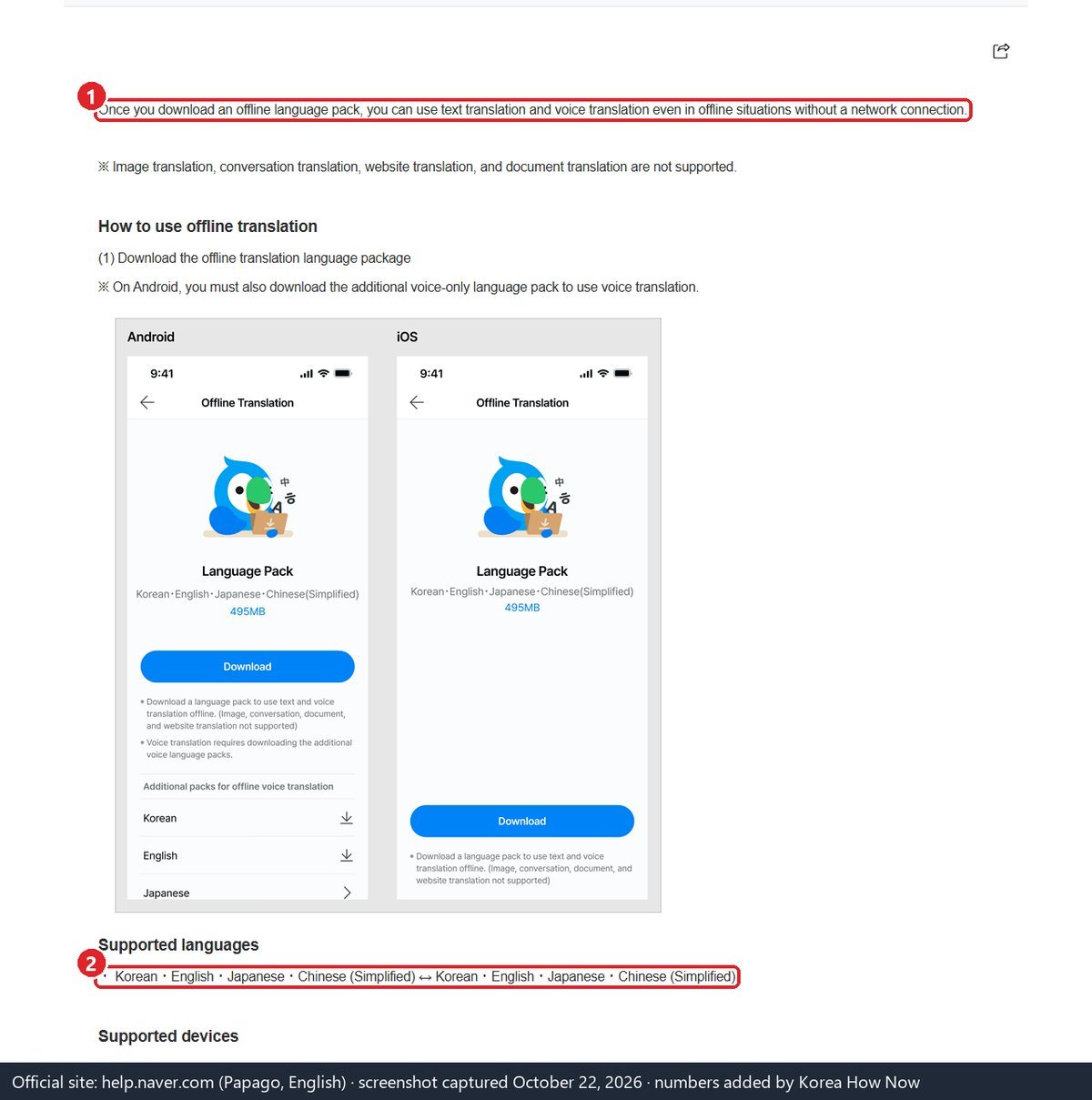
Partly. Download an offline language pack while you’re on Wi-Fi, and you can use text and voice translation with no signal. The packs cover Korean, English, Japanese and Simplified Chinese, in any direction between those four.
| Offline | Works | Doesn’t work |
|---|---|---|
| Features | Text, voice, phrasebook and saved Favorites | Conversation, image, website and document translation |
| Extras | — | Handwriting input, pronunciation playback, dictionary, honorifics, glossary |
| Android | Text with 4GB RAM or more | Voice also needs Android 14 and a separate voice pack |
| iPhone | Text and voice with 4GB RAM or more | — |
If you speak French, Spanish, Thai or any language outside those four, offline translation won’t cover your language. Keep a data plan or pocket Wi-Fi running, or save the sentences you’ll need as Favorites before you go.
Our view: download the offline pack at home, not in Korea. The App Store lists the app itself at about 210 MB, and the screens in Naver’s help page show the four-language pack at 495MB. A hotel or airport Wi-Fi is a poor place to find out your phone lacks the space or the RAM.
Do you need a Naver account?
For the app, neither the App Store nor the Google Play listing says you have to sign in. Whether image translation in the app needs a login is not officially confirmed — check before you go. The App Store update notes from April and May 2026 say the app’s daily image limit went from 50 to 100.
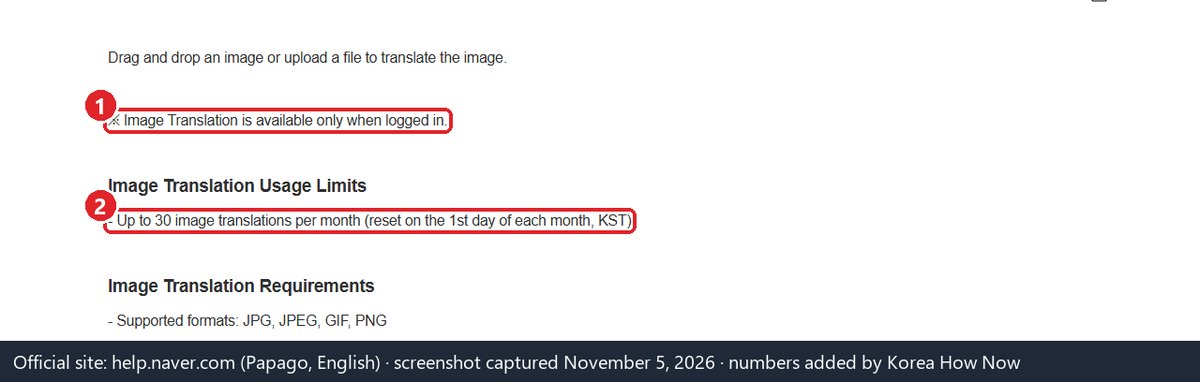
The browser version is stricter. On papago.naver.com, image translation is available only after you log in, with up to 30 images a month (reset on the 1st, Korean time). Papago’s text-translation help page adds that, without logging in, you can translate up to 3,000 characters at a time.
If you do want a Naver account for other things, such as bookings, our guide to Korean apps without a Korean number covers sign-up options.
Is Papago free?
Yes. The App Store lists it as free and notes that the app contains advertising. Google Play offers it as a free install. Apart from the offline pack, the phrasebook and saved Favorites, every mode needs a connection, so a data plan matters more than any app setting; our eSIM, USIM and pocket Wi-Fi comparison covers the options.
Can Papago translate Korean websites?
In the app, yes: the listing says you enter the URL of a foreign website and Papago translates the whole page.
On a computer it’s different. Naver’s help center says website translation on the Papago PC website has been discontinued. Naver now points users to its Whale browser, which has Papago translation built in through a Translate button at the top right of the page.
Which languages does Papago support?
Papago translates between 14 languages:
- Korean, English, Japanese
- Chinese (Simplified) and Chinese (Traditional)
- Spanish, French, German, Italian, Russian
- Vietnamese, Thai, Indonesian, Arabic
On the browser version, Papago’s text-translation help page adds Hindi and Portuguese, but only paired with English, so not directly with Korean. The app’s own menus come in 13 languages, including English.
When should you use something other than Papago?
Papago is for short, practical exchanges: ordering, asking directions, reading a notice. For anything where a mistranslation could cost you, such as a medical visit, a lost passport or a dispute with a shop, we’d call a human interpreter instead. VisitKorea lists tourist interpretation among the services of the 1330 Korea Travel Hotline, a phone and real-time chat line.
For finding places and reading reviews, a map app does more than a translator. Our Naver Map in English guide covers what that app shows in English; keep Papago for whatever is still in Korean.
Which Papago mode for which moment
The same app, used five different ways on a normal trip day. What decides it is whether you have a signal and whether the other person is in front of you.
| Moment | Mode to open | Needs data? | Watch out for |
|---|---|---|---|
| Printed menu or a notice on the wall | Image | Yes | Fit the whole line inside the area you highlight |
| Handwritten menu board | Handwriting (copy the dish name) | Yes | Photos of handwriting often come out as nonsense |
| Taxi driver or hotel front desk | Conversation | Yes | In traffic noise, press and hold the microphone while you talk |
| No signal: subway tunnel, mountain trail | Text or voice with the offline pack | No | Only Korean, English, Japanese and Simplified Chinese |
| Pharmacy counter, food allergy | A sentence saved in Favorites | No | Save it on Wi-Fi before the trip |
| Doctor, lost passport, dispute with a shop | Not Papago: call 1330 for an interpreter | Phone line | A mistranslation here can cost money or time |
Before you fly, in five minutes
- Install Papago and set the language pair to your language and Korean
- On Wi-Fi, download the offline pack if your language is English, Japanese or Simplified Chinese
- Save a few sentences you’ll need (allergies, hotel address) as Favorites
- Try conversation mode once with a friend so you know where each microphone is
Sources
- Apple App Store — Naver Papago – AI Translator (NAVER Corp.), version history and requirements — checked Oct 22, 2026
- Google Play — Naver Papago – AI Translator, updated Oct 14, 2026 — checked Oct 21, 2026
- Naver Help Center — How do you use Offline Translation? — checked Oct 22, 2026
- Naver Help Center — How do you use Conversation Translation? — checked Oct 21, 2026
- Naver Help Center — How do you use Voice Translation? — checked Oct 21, 2026
- Naver Help Center — How do you use Image Translation? — checked Nov 5, 2026
- Naver Help Center — Image Translation doesn’t work — checked Nov 5, 2026
- Naver Help Center — How do you use Text Translation? — checked Nov 5, 2026
- Naver Help Center — How do you use Web Translation? — checked Oct 21, 2026
- Naver Help Center — How do you use the Phrasebook feature? — checked Oct 21, 2026
- Naver Help Center — How to Use Default Translation App (iOS) — checked Oct 21, 2026
- Naver Help Center — Papago 번역 서비스 제공 언어 안내 (Korean) — checked Oct 21, 2026
- VisitKorea (Korea Tourism Organization) — 1330 Travel Helpline & Complaint Center — checked Oct 21, 2026